
How to Record Gameplay With OBS
You can record gameplay with OBS at a smooth 60 frames per second, with your voice and the game sound on separate tracks. Also, this page covers the setup on a Windows PC. It starts with the right capture mode and ends with the encoder that keeps your frame rate steady.
Game Capture · 60 fps · hardware encoding · replay buffer
New to OBS? Our OBS screen recorder guide explains the basics first. To get the app itself, use the official OBS download page.
Pick the Right Mode to Record Gameplay With OBS
OBS offers three ways to grab a game. In addition, each one fits a different case.
| Mode | Best for | Notes |
|---|---|---|
| Game Capture | Most Windows games in fullscreen | Smoothest result, lowest overhead |
| Window Capture | Games in windowed mode, emulators | Works when Game Capture shows nothing |
| Display Capture | Anything else on screen | Records the whole monitor, including pop-ups |
Start with Game Capture. Besides, set its mode to “Capture any fullscreen application,” and OBS hooks the game as soon as it launches. If the preview stays black, switch to “Capture specific window” and pick the game from the list.
On a Mac, Game Capture does not exist. Instead, use the macOS Screen Capture source and choose the game window.
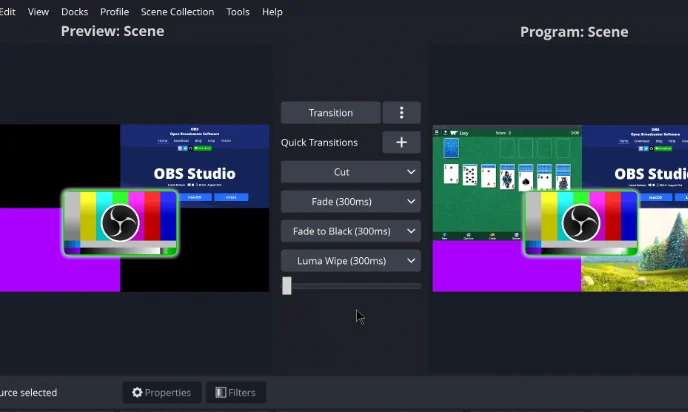
Settings to Record Gameplay With OBS at 60 FPS
Games move fast, so they need more frames than a slideshow. These settings give a smooth result on most modern PCs.
- Open Settings, then Video. Set the base and output resolution to your monitor, such as 1920×1080.
- Change Common FPS Values to 60.
- Go to Output and switch Output Mode to Advanced.
- On the Recording tab, pick a hardware encoder: NVIDIA NVENC, AMD AMF or Intel QuickSync.
- Set Rate Control to CQP or CQ and start with a value around 20. Lower numbers mean better quality and bigger files.
- Choose MKV or Hybrid MP4 as the format.
Then record two minutes of play and watch the clip. If fast scenes look blocky, lower the CQ value a little. When the files grow too large, raise it.
Why a Hardware Encoder Matters
A game already pushes your processor hard. If OBS also encodes video on the same processor, both can slow down.
A hardware encoder uses a separate part of your graphics card. So the game keeps its frame rate, and OBS still records smooth video. Version 33.0 of OBS Studio also turned on NVENC for Arm64 Windows PCs. The official release notes list this change.
If your PC has no hardware encoder, use x264 with the “veryfast” preset and drop to 30 frames per second.
Record Game Sound and Your Voice on Separate Tracks
Separate tracks let you fix the mix later. For example, you can turn the game down when you talk.
- In Settings, then Output, then Recording, tick Audio Tracks 1, 2 and 3.
- Next, open the gear menu in the Audio Mixer and choose Advanced Audio Properties.
- Put Desktop Audio on tracks 1 and 2.
- Assign your mic to tracks 1 and 3.
Track 1 now holds the full mix, while tracks 2 and 3 hold the game and your voice. Most editors show each track on its own line.
For a cleaner voice, right-click the mic in the mixer and choose Filters. Then add Noise Suppression and a Noise Gate. These filters cut keyboard clicks between your sentences.
Record Only the Game’s Sound
Desktop Audio captures everything your PC plays, including chat apps and system beeps. Also, on Windows 10 (version 2004 or newer) and Windows 11, OBS offers a cleaner option: Application Audio Capture.
- Click the plus button under Sources and choose Application Audio Capture.
- Pick the game from the window list.
- Mute Desktop Audio in the mixer, so sounds from other apps stay out.
Now only the game’s sound reaches the recording, plus your mic. In addition, add a second Application Audio Capture for a voice chat app if you want your teammates in the video.
Best Starting Settings by PC Type
Every PC is different, but these presets make a good first test.
| Your PC | Resolution | FPS | Encoder |
|---|---|---|---|
| Gaming PC with a recent NVIDIA or AMD card | 1920×1080 or 2560×1440 | 60 | NVENC or AMF |
| Laptop with Intel graphics only | 1280×720 | 30 or 60 | QuickSync |
| Older PC without a hardware encoder | 1280×720 | 30 | x264, veryfast |
After the first test, raise one setting at a time. That way, you can see which change causes trouble.
Use the Replay Buffer to Save Highlights
Great moments seldom happen when you press record. The replay buffer fixes that.
- In Settings, then Output, then Replay Buffer, tick “Enable Replay Buffer.”
- Set Maximum Replay Time, for example 60 seconds.
- In Settings, then Hotkeys, set a key for “Save Replay.”
- Click Start Replay Buffer in the Controls panel before you play.
Now OBS keeps the last minute in memory. Press your hotkey after a great play, and OBS saves that minute as a file. Note that the buffer uses RAM, so longer replay times need more memory.
Add a Webcam When You Record Gameplay With OBS
A face cam helps viewers connect with you. Besides, to add one:
- Click the plus button under Sources and choose Video Capture Device.
- Select your webcam and click OK.
- Drag the camera box to a corner and resize it.
- Hold Alt (Option on a Mac) and drag an edge to crop it.
Keep the camera away from the game’s map, health bar or chat area. Also, our webcam and screen recording guide shows more layout ideas.
Fix Common Gameplay Recording Problems
The Game Capture Preview Is Black
Run the game in fullscreen and set Game Capture to “Capture specific window.” Laptops with two graphics chips need one more step. In addition, make OBS use the same chip as the game in the Windows graphics settings.
Encoding Overloaded
This warning means your PC can’t keep up. First, switch to a hardware encoder. Then lower the frame rate or the output resolution.
Dropped or Lagged Frames in the Recording
Close the OBS preview during play by right-clicking it and turning it off. Also, close browsers and other heavy apps.
Game Audio Is Missing
Check that Desktop Audio uses the same output device as your headphones. In Settings, then Audio, set it to that device instead of “Default.”
How Much Space You Need to Record Gameplay With OBS
Game recordings grow fast, because 60 fps video holds a lot of detail. File size depends on resolution, frame rate and your quality setting.
So before a long session, record ten minutes and check the file size. Then multiply it to plan your free space. A fast SSD also helps, since slow drives can drop frames during long takes.
Ready to record your next match?
Get OBS Studio 33.0.3 from the official site, then follow the steps above.
Record Gameplay With OBS: FAQ
Can OBS record gameplay without lag?
Yes, on most modern PCs. Besides, use Game Capture and a hardware encoder, and the game keeps its frame rate.
What is the best format for game recordings?
Record in MKV or Hybrid MP4. Both protect the file if the game crashes. Then remux MKV to MP4 if your editor needs it.
Can I record gameplay at 1440p or 4K?
Yes. Set the base and output resolution in Settings, then Video. Higher resolutions need a stronger graphics card and more disk space.
Does OBS record console games?
Yes, with a capture card. Also, add it as a Video Capture Device, and OBS records it like any other source.
Does the replay buffer save on its own?
No. In addition, the buffer only lives in memory. You need to press your Save Replay hotkey to write it to a file.
Disclaimer
OBS-Studio.us.com is an independent guide, not part of the OBS Project. Besides, download OBS only from obsproject.com or an official store.